








Learn how to shop
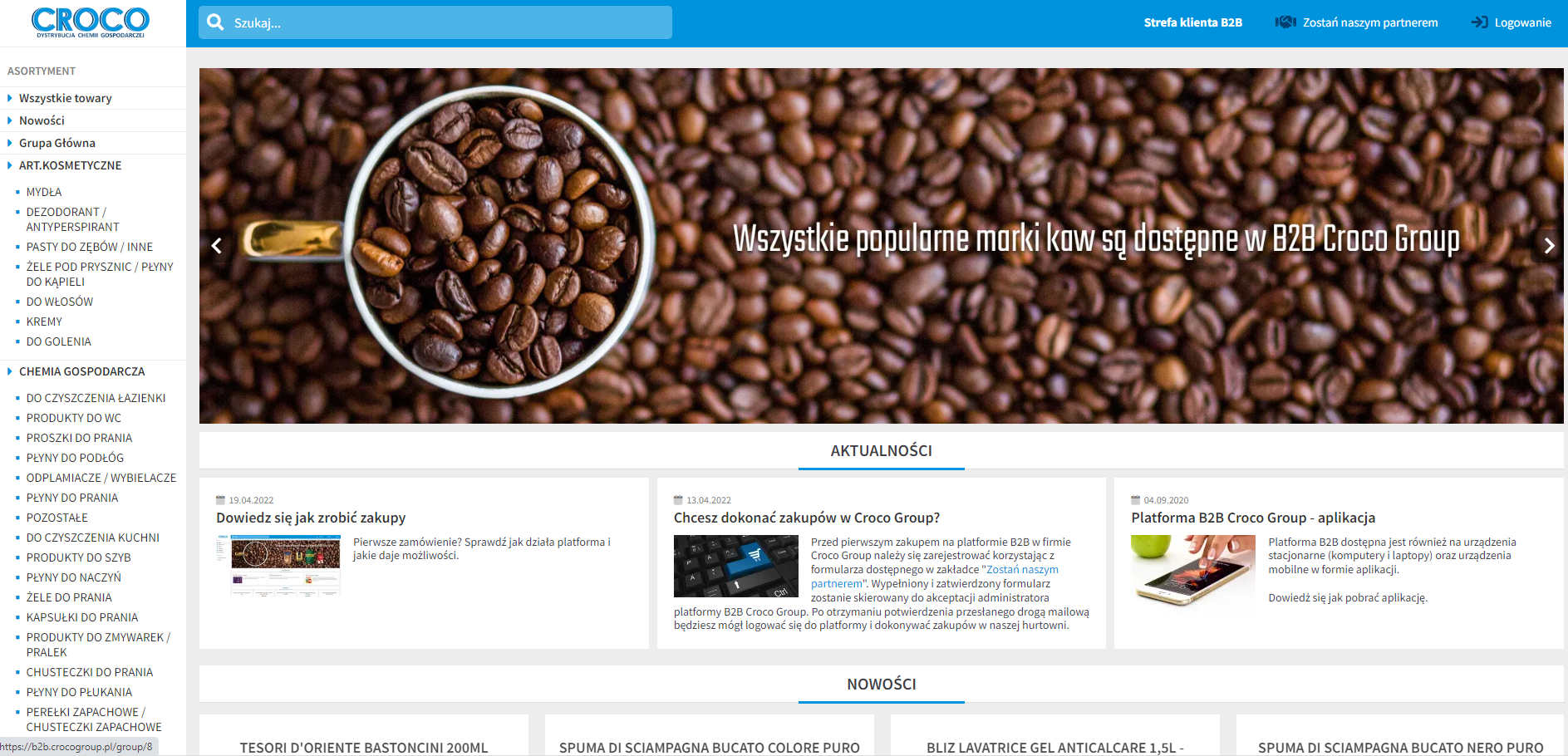
First order? Check how the platform works and what opportunities it offers.
Welcome to the B2B Croco Group platform.
If you have already received your access data or your account has been verified and approved, you can make your first purchases in our wholesale store.
Purchases are only possible after registration or receiving access data; the B2B platform without login is functionally limited and only allows browsing the available assortment without showing prices.
To place an order, you need to:
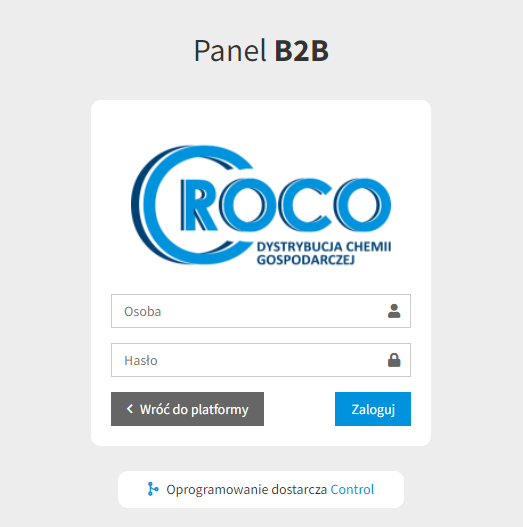
- Log in to the platform (login is available in the top right corner of the platform).

- Enter the login and password received by email.
After logging in, you will see an additional menu on the right: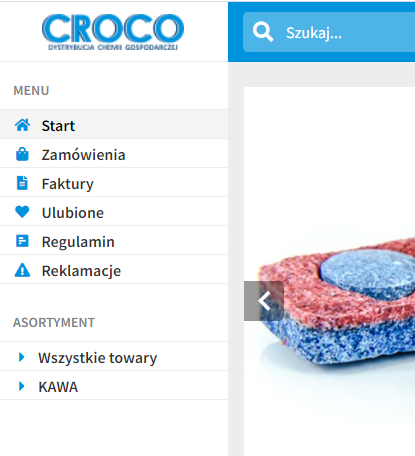
- Home – return to the platform’s main page
- Orders – here you can check all orders placed via the B2B Croco Group platform
- Invoices – all invoices and proforma invoices issued for orders will be available here
- Favorites – list of favorite products
- Terms – collection of rules related to purchasing on the platform
- Complaints – a place to submit complaints regarding placed orders and products
To change your password, go to the “My Data” tab in the top right corner. If you lose your password, contact Croco Group to set a new one.
Product search, building the cart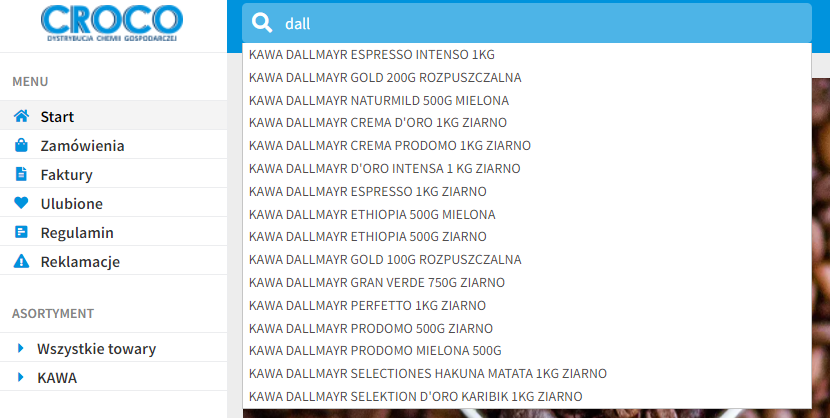
All available assortment is divided into categories, which are available in the left sidebar menu of the platform. Selecting a category narrows the product catalog to that category. You can search for products using the search bar at the top of the page. The search engine uses auto-suggestions – entering one character displays a list of products containing that character. Additional characters refine the list of found products.
The product list is available in two formats – list and tiles. You can also turn off image visibility. These functions are available above the product list.
Product parameters: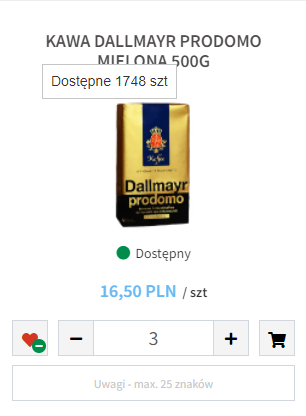
The product contains the following parameters:
- Product title and image (if added).
- EAN – EAN number
- Price – prices on the platform are shown net.
- Hovering over the product will show approximate stock availability.
- Setting the quantity of products before adding to the cart (can be changed using +, - or by entering a number).
- Adding a product to favorites (this product is added to the Favorites tab – building the Favorites tab will make future purchases easier). If the product is already in favorites, a minus will appear next to the heart icon – this button removes the product from the favorites list.
- Cart – add the product to the cart.
- Note field – if you have comments regarding a specific product, you can enter them here.
Placing orders
After building the cart, click the cart icon (top right corner to place the order) – the icon will display the number of added products (not the number of units).
The cart will display a list of added products with quantities.
You can adjust the quantity of products in the cart, mark them as favorites, or add a note.
In the cart, you also select the delivery address or indicate personal pickup.
If you have comments for the entire order, you can write them in the field: additional information.
To place an order, click the “Place Order” button.
Condition – placing an order is possible after reaching the logistical minimum of 1500 PLN net. If the minimum is not reached, a message will be displayed and the order will not be processed.
Individual discounts are applied during order processing and will be visible after receiving the proforma invoice / VAT invoice.
If you order delivery via courier, the delivery cost will be added and shown on the invoice. Delivery costs depend on the size and weight of the shipment.
Order overview and status changes
The placed order is saved in the “Orders” tab. In this tab, you can also check the order status. You will be notified by email of any status change.
Statuses:
- Pending confirmation – status of the placed order
- In progress – proforma invoice – status of the order for which a proforma invoice was generated – awaiting payment
- Ready for pickup – order completed, waiting for pickup
- Ready for courier pickup – order completed, waiting for courier pickup
- Completed – order sent or collected
- Cancelled – order cancelled and will not be processed
Due to the large number of orders from different sources, stock levels are updated once a day on working days.
Repeating orders or supplementing the cart with products from a previous order.

Products from a previous order can be added to a new order.
To do this, go to the Orders tab, select the previous order and go to the order details (accessible by clicking the order number in the order list).
At the bottom of the order, there is a "Repeat Order" button – after clicking, you will get two options:
Add all items to the cart, replacing those already in it (removing existing items from the cart),
Supplement the cart with additional items from the order.
The B2B platform is also available on mobile devices, including a PWA app.
The application can be downloaded from your browser options.
We invite you to shop
 Install the B2B Croco app